A11yLTLNav detects web accessibility navigation failures by checking explicit temporal rules while exploring keyboard interactions. The rules are grounded in studies with blind and low-vision users. Across 31 generated websites, 274 of 309 reported failures were confirmed correct (88.7% precision), without language-model inference during testing.
Abstract
Try an action. Check what happens next.
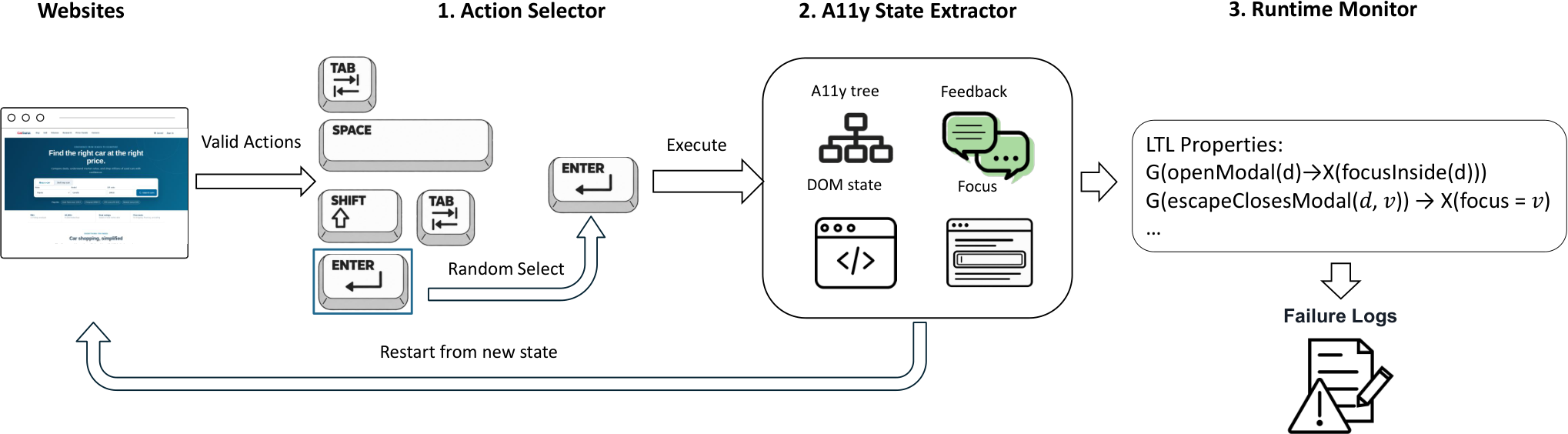
Figure 1 · Enlarge
One rule: open a dialog → move focus inside.
How the rules and random testing work
G means “every time”; X means “in the next checked state”; d is the dialog. The checker observes the relevant state after the interaction settles.
Linear Temporal Logic (LTL) expresses rules about action sequences. Random testing tries varied sequences of available keyboard actions against those fixed rules. Each failure report records the interaction and resulting state.
Exploration does not guarantee that every failure will be found. Read the method.
See it happen
Watch the checker
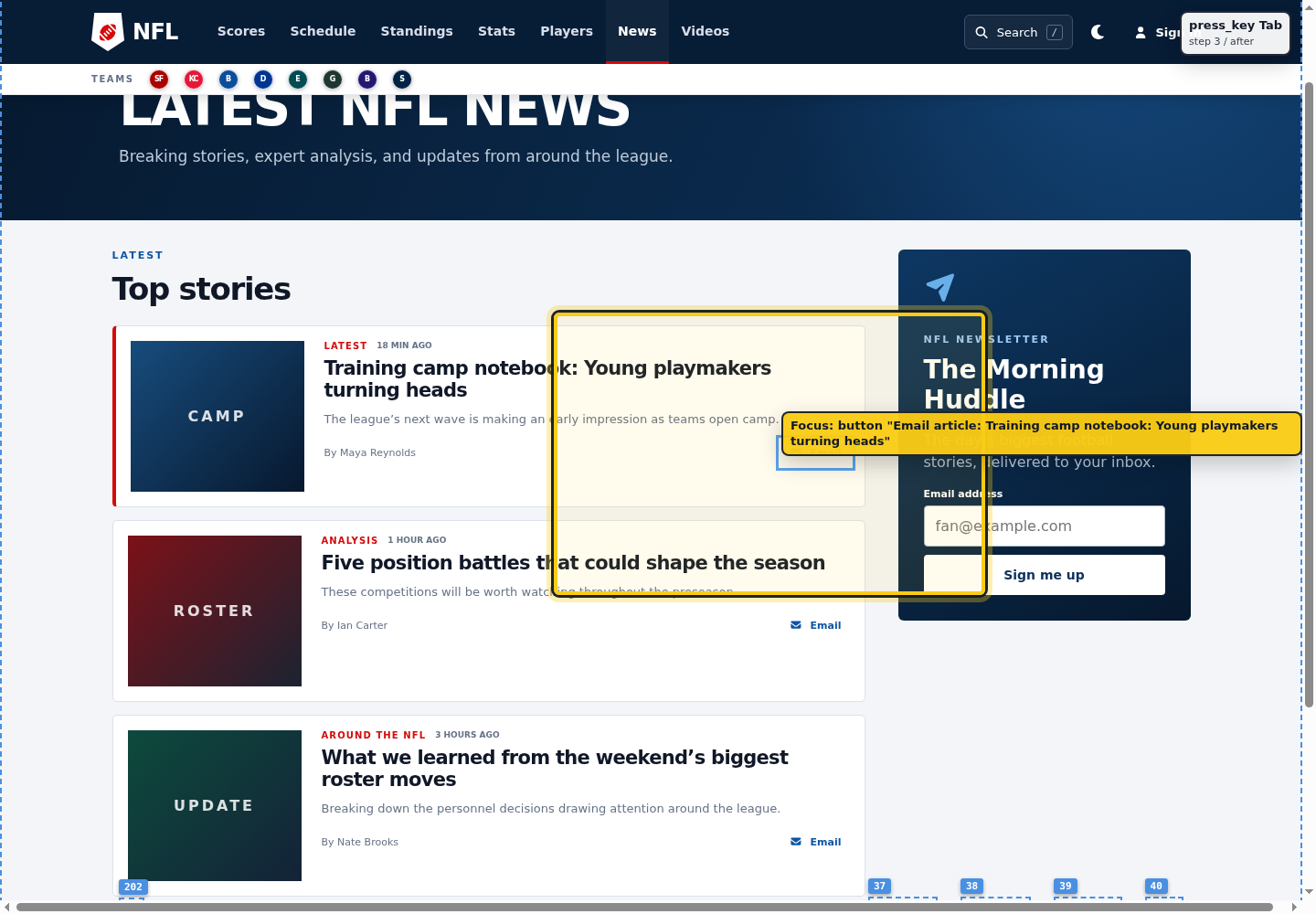
00:03 · Focus stays outside. 01:47 · Escape does not close the player.
Full replay · Evidence & checker output
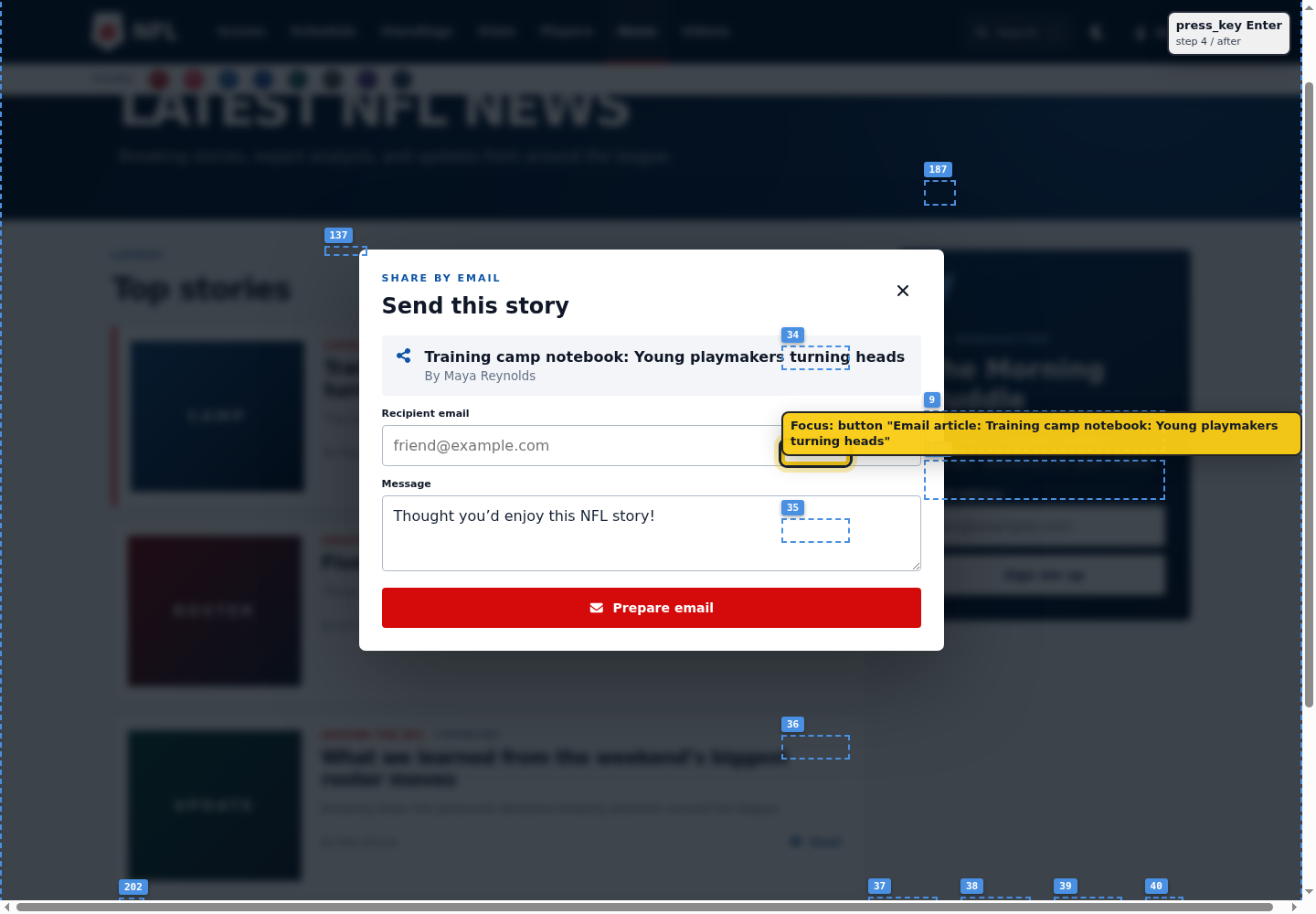
The task succeeds. Focus is still lost.
After preparing the email
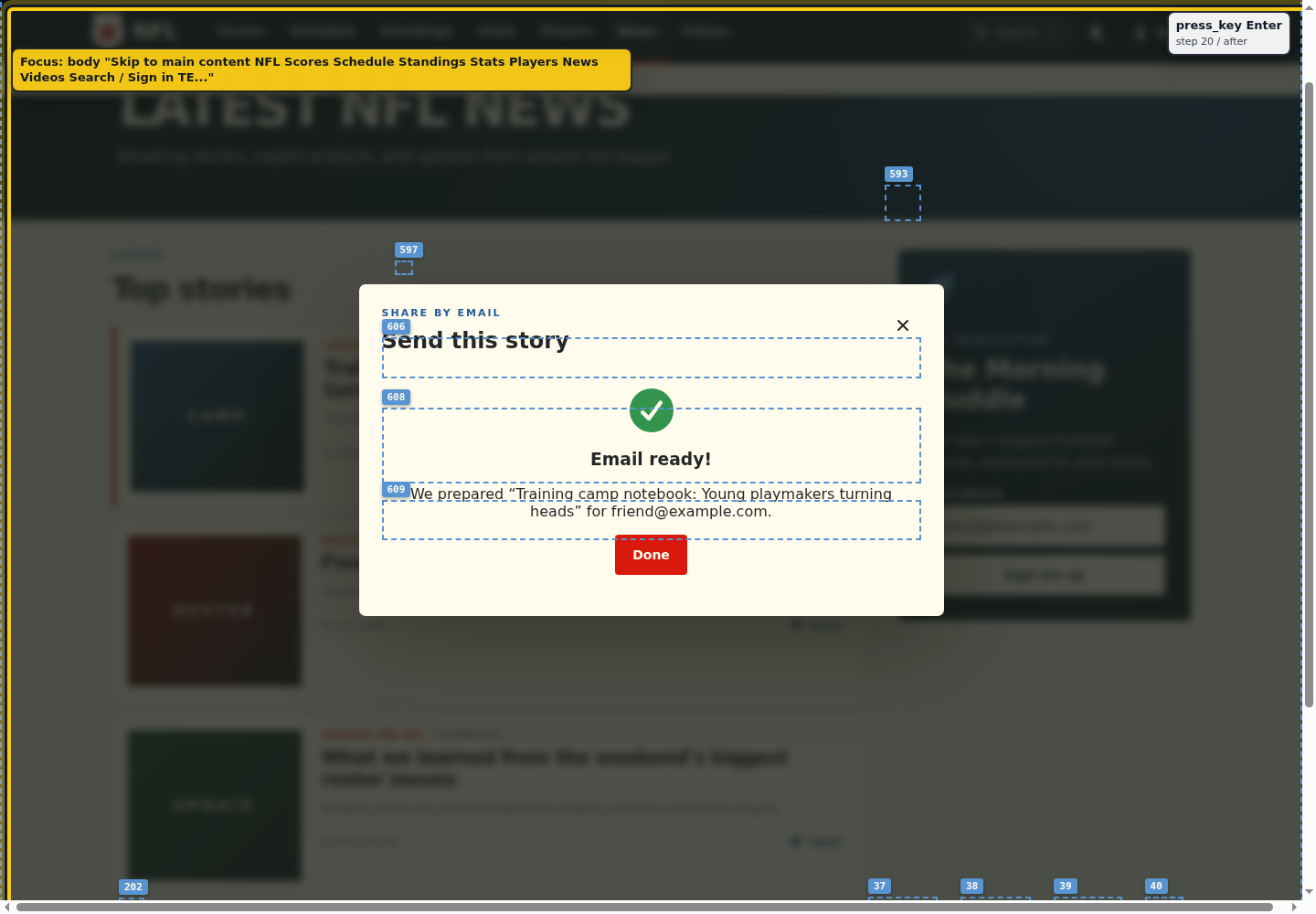
After closing the dialog
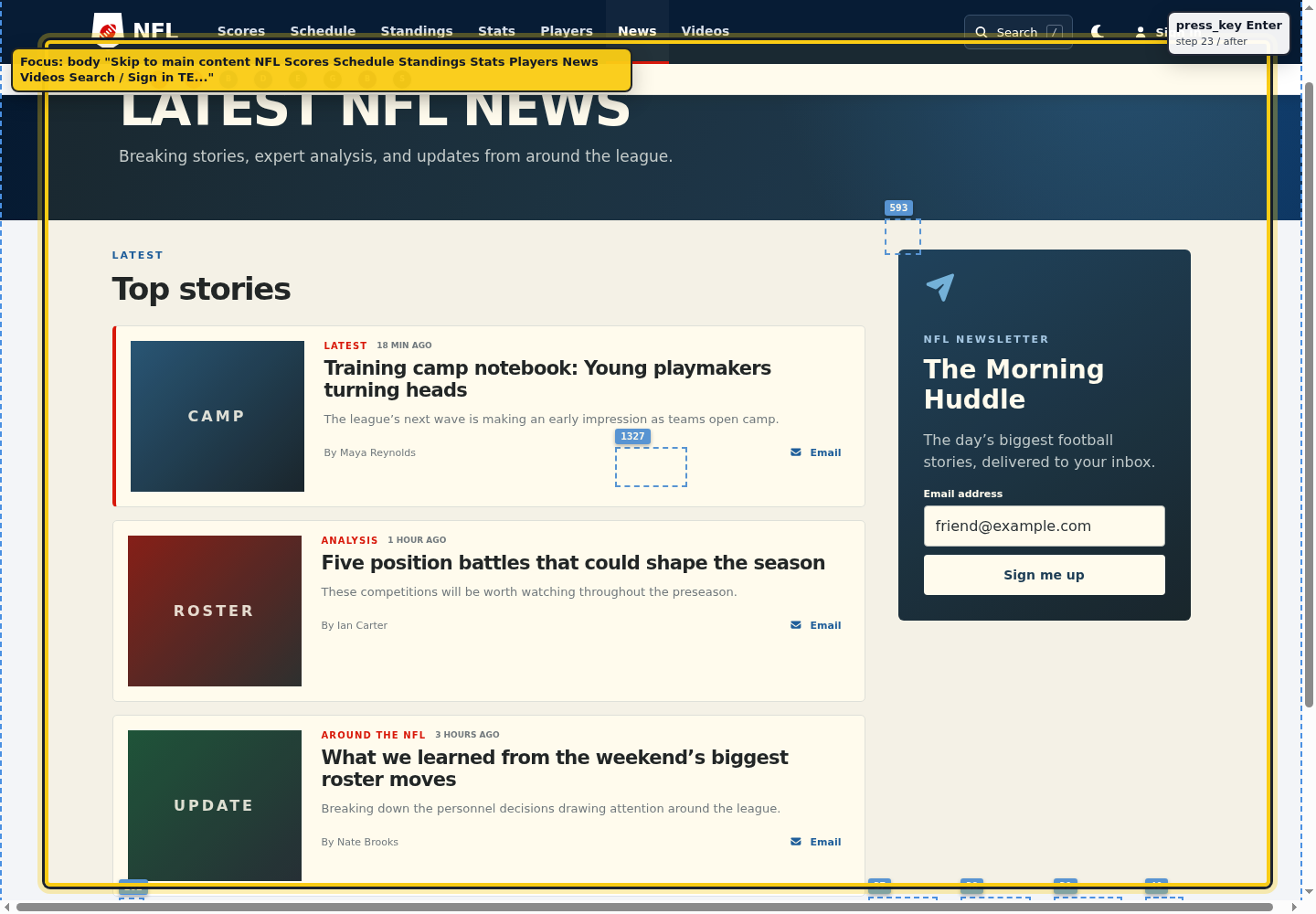
Watch the full agent recording
All four annotated states
Tab inserts text. How does the user leave?
An exit-path check needs more than one Tab press.
How many errors did each checker find?
| Checker | Reported | Confirmed errors | False positives | Precision |
|---|---|---|---|---|
| AxeStatic | 18 | 17 | 1 | 94.4% |
| WAVEStatic | 68 | 34 | 34 | 50.0% |
| Adapted TaskAuditAgentic | 276 | 158 | 118 | 57.2% |
| A11yLTLNavRun 1 | 309 | 274 | 35 | 88.7% |
Confirmed errors were verified by human reviewers. Static checkers scanned the first page only; counts include findings relevant to blind and low-vision users. Paper · Table 4
Review protocol and evaluation details
Reports were deduplicated by website, component, and checker. Two authors reviewed every report; disagreements were resolved through discussion. Precision is confirmed errors divided by reported findings, not recall.
Across three A11yLTLNav runs, precision ranged from 85.9% to 88.7%. No language-model inference was used during its testing. Detection depends on the paths explored and the state exposed by the browser.
These checks complement static tools and studies with screen-reader users. Read the full evaluation.